
TL;DR

Prime made for students and young adults
- Fast, free delivery for dorm and study essentials
- Prime Video and Amazon Music included
- Member-only deals
VR headsets show a computer-generated view that responds to your head movements, and some also track your hands or eyes. If you’re replacing an Oculus Rift S, compare how each headset connects, what it can run, how it fits, and which features your apps need; a matching specification alone does not guarantee a similar experience. The Meta Quest 2, HTC VIVE Focus Vision, and Pimax Crystal Super take different approaches to standalone use, PC connection, tracking, and visual detail.
Your old VR headset can still feel familiar even when replacing it gets complicated: the cable fits your PC, your controllers land where you expect, and your favorite game starts without fuss. Then you look at newer models and meet a tangle of resolution figures, tracking methods, and connection options. A higher number on a product page doesn’t tell you whether the headset suits your room, computer, or face.
This guide explains what VR headsets do and how to compare them in daily use. If you’re moving on from an Oculus Rift S, you’ll see how the Meta Quest 2, HTC VIVE Focus Vision, and Pimax Crystal Super differ, and what questions to answer before choosing. You’ll also find practical advice on comfort, motion sickness, PC compatibility, privacy, and the kind of room setup that makes a first session feel less like bumping into a coffee table.
Compare display resolution using the same measure, such as pixels per eye, and treat refresh rate as one part of the viewing experience.
Choose standalone or PC-connected VR according to the apps you want and the computer and ports you already have.
Check fit, glasses clearance, IPD adjustment, and comfort in person if possible; a high specification cannot correct an uncomfortable fit.
Start with short VR sessions, clear your play area, and stop if you feel dizzy or unwell.
Review the headset’s app compatibility, connection requirements, privacy controls, and exact model or bundle before buying.
What VR headsets do when you turn your head
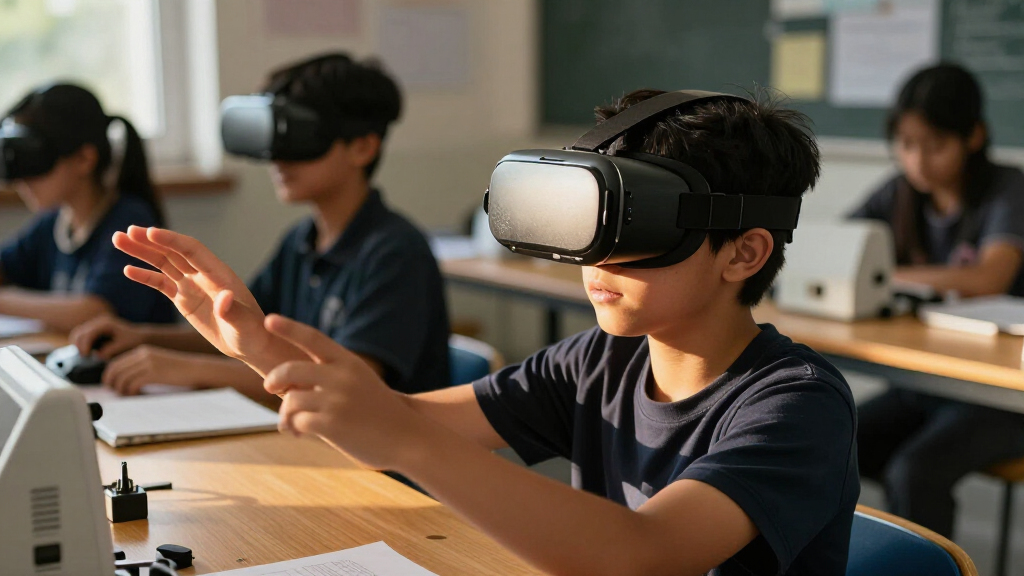
VR headsets create an immersive computer-generated view, usually by showing a slightly different image to each eye. When you turn your head, sensors track the movement and update the scene, so a virtual doorway stays in front of you as you look around. Many systems also track controllers or hands, letting you point, grab, or press virtual buttons.
That simple loop connects the screen to your body. For instance, in a puzzle game, you can lean closer to inspect a key on a table, then reach for it with a controller. When tracking and response feel steady, the interaction can feel natural; when the view stutters or lags, the same movement may feel uncomfortable.
VR places you mostly inside a digital setting. Augmented reality adds digital objects to a view of the real world, while mixed reality can make digital objects appear anchored in your room. Passthrough features show camera video of your surroundings with digital content layered over it. That is different from looking through a transparent lens.
Think about the difference before choosing a headset. If you want to explore a fully virtual landscape, VR may fit. If you want a floating screen beside your actual desk, mixed-reality or passthrough tools may matter more. The product label alone won’t tell you how well those features work with the apps you use.
Oculus Rift S replacement VR headset
As an affiliate, we earn on qualifying purchases.
As an affiliate, we earn on qualifying purchases.
Which Oculus Rift S alternative fits your setup?
The right Rift S replacement depends on your connection and use case. The Meta Quest 2 offers standalone operation, while the HTC VIVE Focus Vision and Pimax Crystal Super specifications point toward PC-connected VR features. Compare the connection, fit, supported apps, and tracking you need before treating any one model as a direct substitute.
The Rift S is listed with an 80 Hz refresh rate, 1280 × 1440 pixels per eye, built-in Oculus Insight room-scale tracking, and DisplayPort plus USB 3.0 connectivity. Its status may vary by seller or region, so check current product information rather than assuming it is either readily available or definitively discontinued. The alternatives below are examples to research; models, bundles, and specifications can change.
| Headset | Listed display and refresh rate | Listed tracking | Connection or audio notes |
|---|---|---|---|
| Oculus Rift S | 1280 × 1440 per eye; 80 Hz | Built-in Oculus Insight room-scale tracking | DisplayPort, USB 3.0; built-in 3D positional audio |
| Meta Quest 2 128GB | 1832 × 1920 per eye; up to 120 Hz | Inside-out, room-scale | USB; standalone operation is a key distinction |
| HTC VIVE Focus Vision | 2448 × 2448 per eye; 90 Hz | Eye, hand, and camera-based | DisplayPort, USB, Wi-Fi; open-back spatial speakers |
| Pimax Crystal Super | 3840 × 3840 per eye; up to 90 Hz | Inside-out and eye tracking | DisplayPort and USB; integrated spatial audio |
Use these figures as a starting point, not a promise of equal performance. The supplied Crystal Super listings include one without a stated resolution, so verify the exact model and bundle before comparing. For example, a Rift S owner who wants to play without a PC might prioritize a standalone headset, while a sim racer with a capable computer may put more weight on a wired PC connection and display detail.
As an affiliate, we earn on qualifying purchases.
Which display details change what you see?
Resolution, refresh rate, lenses, contrast, and field of view all shape the view inside a headset. Resolution describes how many pixels form the image, but a product listing may give that number per eye or for the full display. Check the unit before you compare: 1280 × 1440 per eye on the Rift S and 1832 × 1920 per eye on the Quest 2 are both per-eye figures.
Refresh rate, measured in hertz, describes how often the display can update each second. The listed figures here range from 80 Hz on the Rift S to up to 120 Hz on the Quest 2, with 90 Hz listed for the VIVE Focus Vision and up to 90 Hz for the Pimax Crystal Super. A higher maximum can be useful, but what you actually experience also depends on the headset, the app, and—when connected to a PC—the computer.
Lenses change how those pixels appear to your eyes. Newer designs such as pancake lenses can help make a headset thinner, but lens type alone cannot tell you whether the image will look sharp across your field of view. Fit and the position of the lenses matter, too. For example, a person reading small labels on virtual instruments may care about clarity in the center, while someone watching an expansive scene may pay more attention to field of view.
Look for how a headset handles fit adjustments, including interpupillary distance, or IPD, which describes the spacing between your pupils. If the image looks blurry or causes eye strain during a short demo, a large advertised resolution may not fix the problem. Try adjusting the fit and checking the manufacturer’s guidance before judging the display.
As an affiliate, we earn on qualifying purchases.
How to choose between standalone and PC VR
Standalone VR runs apps on the headset, while PC VR uses a computer to run or stream experiences. Standalone models can be easier to set up because they don’t require a gaming PC for every session. PC-connected VR can tap a computer’s processing power, though it adds compatibility checks and a wired or wireless connection to your setup.
- List what you want to play or do. Check whether the games, fitness apps, desktop tools, or training software you care about run on the headset itself or require a PC.
- Check your computer and connection. For PC VR, compare the headset’s connection requirements with your computer’s ports and graphics capability. The Rift S listing specifies DisplayPort and USB 3.0; the alternatives’ listed connection options differ.
- Decide how much setup you’ll tolerate. A seated headset session at a desk can make a cable manageable. A room-scale game may feel easier with fewer things to snag as you turn.
- Test the actual apps when you can. Confirm that the software you want supports the specific headset and tracking features, not just VR in general.
Imagine that you want a quick workout before work. A standalone headset lets you start without powering up a separate PC, though you still need to manage battery life. If you spend weekends in a flight simulator, a PC-connected headset might suit you better because your computer already powers the experience. Your habits matter more than a broad claim that one category is always superior.
Some standalone headsets also support PC streaming, but that feature can depend on software, Wi-Fi quality, and the particular app. Check current model documentation for the connection method and compatible PC requirements. A feature listed on the box is only useful if it works with your existing setup.
VR headset for gaming with high resolution
As an affiliate, we earn on qualifying purchases.
As an affiliate, we earn on qualifying purchases.
How to get a comfortable fit before a long session
A comfortable headset should sit securely without pressing painfully on your face or letting the lenses touch your glasses. Weight, balance, padding, ventilation, and the shape of the facial interface affect whether you want to keep it on. Comfort can matter more over an hour than a small difference between headline display numbers.
Try the fit while seated first. Adjust the strap so the headset doesn’t slide when you look down, then move the lenses or headset position until the image looks clear. If you wear glasses, check the maker’s guidance about spacers or prescription lens inserts. For instance, glasses that press against a headset lens can scratch either surface, so leave enough room rather than forcing the frame into a tight fit.
Heat and pressure can build slowly. A person who feels fine during a five-minute demo may notice a hot brow or sore cheeks after a longer session. Take the headset off for a short break, wipe the padding according to the manufacturer’s instructions, and check whether the strap distributes weight comfortably. Facial shapes vary, so a friend’s favorite fit may not work for you.
Before buying, look for return terms and model-specific fit guidance, and try a headset if you have the chance. Some devices allow IPD adjustment; others handle lens alignment differently. If you see persistent blur or discomfort after careful adjustment, stop and reassess rather than assuming you’ll get used to a poor fit.
How to reduce motion discomfort and avoid collisions
VR can cause eye strain, nausea, or dizziness for some people, especially when a game moves the view without matching your body’s movement. Sensitivity varies, and no setting guarantees that every person will feel comfortable. Short sessions, a stable frame rate, a good fit, and comfort options can help you find out what works for you.
Start with a seated or stationary experience, such as looking around a virtual gallery. If you feel fine, try a short session with gentle movement before choosing a game that rushes you through a corridor. A player who feels comfortable in a stationary puzzle might still feel unwell with artificial movement, so treat each type of experience separately.
Clear the play area before you stand. Move mugs, charging cables, pets, and low furniture out of reach, then use the headset’s boundary system where available. Many apps support seated or standing play; room-scale apps need clear floor space, and the exact area depends on the headset and software. A small living room may still work for seated play, even when it cannot safely fit a broad swinging motion.
If discomfort starts, stop the experience, remove the headset, and take a break. Don’t push through dizziness to finish a level. For children, check the manufacturer’s minimum-age guidance for the specific device and region, supervise use, and choose age-appropriate content. Parents can also set session boundaries and check privacy controls before handing over the headset.
What tracking and privacy features deserve a closer look?
Tracking determines how a headset follows your movement, and privacy controls determine how you manage the sensors that support it. Inside-out tracking uses cameras on the headset to follow movement without external sensors. Some models add eye, hand, face, or body tracking, but feature names alone don’t tell you which apps use the data or how it is handled.
The Rift S listing describes built-in Oculus Insight room-scale tracking. The Quest 2 listing describes inside-out, room-scale tracking, while the VIVE Focus Vision lists eye, hand, and camera-based tracking, and the Pimax Crystal Super lists inside-out and eye tracking. Those differences may matter in an app that relies on hands or gaze. For example, a training program that expects precise eye tracking may need hardware and software support that a headset without that feature cannot provide.
Headsets create an immersive view, usually by showing a slightly different image to each eye; sensors track the wearer’s head movements so the scene responds as they look around. Cameras and microphones can also support other features. Eye or face tracking, where available, can involve especially sensitive information, so review the device’s privacy settings and data policy before turning those features on.
Check whether you can control permissions for cameras, microphones, and tracking data, and whether the headset lets you disable features you don’t use. A household sharing one device might create separate accounts or profiles where supported and review what each app requests. That small check can prevent a casual fitness session from collecting more information than you expect.
Where newer VR and mixed-reality features can help
Newer VR headsets increasingly combine standalone apps, optional PC streaming, higher-resolution displays, color passthrough, and mixed-reality features. These additions can open up uses beyond gaming, but they only help when the software and comfort suit the task. Feature availability also varies by model and can change with updates.
Passthrough uses cameras to show a view of your surroundings on the headset display, with digital objects layered on top. It is not the same as looking through clear glass. For instance, you might keep a virtual timer beside a real kitchen counter while still seeing the room through camera video. The quality and usefulness of that view depend on the device and the application.
Eye tracking can support foveated rendering, which concentrates graphics detail where you’re looking. That may help a compatible system direct its resources, but the feature’s practical value depends on app support and implementation. Hand tracking can also let you point or select without picking up controllers. If a particular game or work tool relies on controllers, hand tracking may not replace them.
People also use headsets for immersive video, fitness, virtual desktops, social spaces, education, design, and workplace training. A designer might inspect a 3D model at room scale; someone working from home might pin a virtual screen above a desk. Before you choose a model for one of these jobs, look for software that does the task well and test how long you can comfortably wear the headset.
A useful feature is one your chosen apps support and your daily routine can accommodate. A camera, eye tracker, or high-resolution display on a specification sheet does not tell you whether the experience will fit your day.
What to check before you commit to a replacement
Before you choose a replacement, match the headset to your apps, computer, fit, and room. Don’t decide from resolution alone: connection requirements, tracking support, battery expectations, privacy settings, and software compatibility can change whether a device works for you.
Start with the job the headset needs to do. If you want standalone games, confirm that the titles you play run on the device. If you use a PC simulator, check its supported headsets, required ports, and computer specifications. If you want a virtual monitor, investigate the desktop software and connection quality rather than assuming every headset handles it the same way.
Then check the practical details. Review the manufacturer’s glasses guidance, IPD and strap adjustments, audio configuration, battery information, and room boundary features. Battery life varies by model, app, brightness, and attached accessories, so consult the specific maker’s documentation and current independent reporting. If your household shares the headset, include account controls and privacy settings in your comparison.
For a concrete example, someone replacing a Rift S to play PC games may care most about DisplayPort compatibility and the game’s support for the new headset. Someone who wants to play in a room without a computer nearby may favor standalone operation and battery convenience. Write down your two or three must-haves, then compare exact model names and bundles; the same product family can include different specifications or accessories.
Product pages and market conditions change. Treat the listed models and specs in this guide as a comparison starting point, then verify current names, included accessories, software support, and availability before you make a decision. A short hands-on fit test, where possible, can tell you more about comfort than another hour spent comparing numbers.
Frequently Asked Questions
Do I need a gaming PC to use a VR headset?
No, not for a standalone headset. A standalone model runs compatible apps on the headset itself. PC VR needs a compatible computer, and some standalone headsets can also stream PC content; check the exact model and software requirements before relying on that feature.
Can I wear glasses with a VR headset?
Often, but fit varies by headset and frame. Check the manufacturer’s glasses guidance, spacers, and prescription lens options. Make sure your glasses do not press against the headset lenses, since contact can scratch either surface.
Can VR headsets make you feel motion sick?
Yes, some people experience nausea, dizziness, or eye strain. Sensitivity differs, and experiences with artificial movement can feel harder than stationary ones. Try a short session, use comfort settings, and stop if you feel unwell.
How much space do I need for VR?
It depends on the experience. Many headsets support seated or standing apps, while room-scale play needs a clear area sized for the specific headset and software. Move cables, furniture, and other obstacles out of reach before you begin.
Can I use a VR headset to watch movies or work on a virtual screen?
Many headsets offer video apps, virtual screens, or desktop streaming. The experience depends on display clarity, software, and connection quality. Check that the specific app supports your device and try the screen size and comfort before planning a long work session.
What should I compare when replacing an Oculus Rift S?
Compare apps, PC compatibility, connection type, tracking, fit, and privacy controls alongside display specifications. The Rift S lists DisplayPort and USB 3.0, so a PC user should check how the replacement connects and whether their software supports it. Verify current model details and bundle contents because product listings can change.
Conclusion
Choose your next headset by starting with the experience you want, then check whether the device supports it, fits you, and works with your room and computer. A Rift S replacement can be standalone, PC-connected, or capable of both; the right answer depends on your games and habits.
Try the fit if you can, verify the exact model details, and start with a short session. The best headset is the one that makes you want to put it on again tomorrow.
Halloween Picks
halloween
As an affiliate, we earn on qualifying purchases.