
This guide helps students understand how to use a scientific calculator efficiently. It covers basic functions, calculations, and common mistakes. Designed for beginners, it enables quick mastery to improve homework accuracy and exam performance.
Difficulty: Beginner | Time: 15-20 minutes
What You’ll Need
Tools & Materials:
- A scientific calculator (physical or app-based)
Knowledge:
- Basic arithmetic (addition, subtraction, multiplication, division)
- Understanding of mathematical functions (square roots, exponents)
Ensure your calculator has fresh batteries or is fully charged before starting. Familiarize yourself with the calculator model’s layout if possible.

Texas Instruments TI-30XIIS Scientific Calculator, Black with Blue Accents (30XIIS/TBL/1L1/BK)
Robust, professional grade scientific calculator. Logs and antilogs
As an affiliate, we earn on qualifying purchases.
As an affiliate, we earn on qualifying purchases.
Before You Start
Check that the calculator is turned on and reset to default settings if needed. Read the user manual or quick-start guide to familiarize yourself with key buttons. Avoid using a calculator with a damaged screen or stuck buttons.
Texas Instruments TI-30XIIS Scientific Calculator, Black with Blue Accents (30XIIS/TBL/1L1/BK)
Robust, professional grade scientific calculator. Logs and antilogs
As an affiliate, we earn on qualifying purchases.
As an affiliate, we earn on qualifying purchases.
Step-by-Step Instructions
Step 1: Turn on the calculator
Press the power button to turn on the calculator. Confirm it powers up and displays the main screen.
Tip:
If the display remains blank, replace the batteries or check the power source.
Check:
The calculator screen lights up and shows a ready or default display (such as ‘0’).
Step 2: Clear previous calculations
Press the ‘AC’ or ‘C’ button to clear any previous entries or calculations from the screen.
Tip:
This prevents accidental carry-over errors from previous calculations.
Check:
The display shows a clear screen, typically with a ‘0’ or blank.
Step 3: Input basic numbers and operations
Type the number using the keypad, then press the operation button (e.g., ‘+’, ‘-‘, ‘×’, ‘÷’) followed by the next number. Press ‘=’ to see the result.
Tip:
Double-check each number before pressing ‘=’ to avoid input errors.
Check:
The calculator displays the correct result of the entered operation.
Step 4: Use scientific functions
Access functions like square root (‘√’), exponents (‘^’ or ‘y^x’), or trigonometric functions (‘sin’, ‘cos’, ‘tan’) by pressing their respective buttons. Enter the input value, then press the function button, and finally ‘=’ if needed.
Tip:
For functions requiring an input, enter the number first, then press the function key, then ‘=’ if necessary.
Check:
The calculator correctly computes the function, displaying the expected result.
Step 5: Use parentheses for complex calculations
Press the ‘(‘ button before starting a calculation that involves multiple operations, then ‘)’ to close it. Complete the calculation within parentheses to prioritize operations.
Tip:
Check that parentheses are properly opened and closed to avoid calculation errors.
Check:
The calculator processes the expression correctly, giving the expected result.
Step 6: Recall previous calculations if supported
Use the ‘Ans’ button or memory functions to reuse recent results in new calculations.
Tip:
This saves time and reduces input errors when working with multiple steps.
Check:
The previous answer is correctly recalled and used in ongoing calculations.
Texas Instruments TI-30XIIS Scientific Calculator, Black with Blue Accents (30XIIS/TBL/1L1/BK)
Robust, professional grade scientific calculator. Logs and antilogs
As an affiliate, we earn on qualifying purchases.
As an affiliate, we earn on qualifying purchases.
Common Mistakes to Avoid
- Entering the wrong operation order or forgetting parentheses — Use parentheses to group operations explicitly and double-check the order of inputs.
- Confusing function buttons or pressing the wrong buttons — Familiarize yourself with the calculator layout and test functions before use during exams.
- Not clearing previous calculations, leading to incorrect results — Always press ‘AC’ or ‘C’ before starting a new calculation.
- Using an incorrect mode (e.g., degrees vs. radians for trigonometry) — Set the calculator to the correct mode before calculations, usually via ‘MODE’ button.
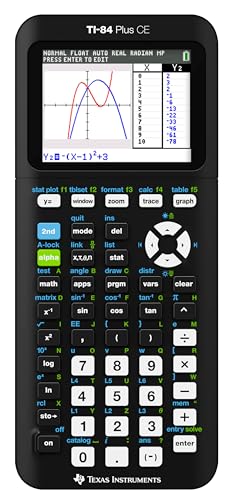
Texas Instruments TI-84 Plus CE Color Graphing Calculator, Black
High-resolution, full-color backlit display.Horizontal and vertical split-screen options..Display type : LED. Number of Items : 1.
As an affiliate, we earn on qualifying purchases.
As an affiliate, we earn on qualifying purchases.
Troubleshooting
Problem: Calculator shows error messages like ‘Syntax Error’ or ‘Math Error’
Solution: Check your input for missing parentheses, incorrect function usage, or invalid values (e.g., square root of negative number).
Problem: Results seem incorrect or inconsistent
Solution: Verify the calculator is in the correct mode (degrees/radians), clear the screen, and re-enter the calculation carefully.
Problem: Calculator does not turn on
Solution: Replace batteries, check power connection, or reset the calculator if a reset button is available.
What Success Looks Like
The calculator correctly performs basic and scientific calculations, displays results accurately, and responds correctly to function keys. You can verify success by checking if the displayed results match manual calculations for test problems.
Next Steps
Practice using the calculator regularly to increase speed and confidence. Keep it clean and check batteries periodically. Explore advanced functions like logarithms or statistical calculations as needed for coursework.
Frequently Asked Questions
How do I switch between degrees and radians?
Press the ‘MODE’ button, then select the angle unit option (DEG or RAD) using arrow keys or number keys, then confirm to set the mode.
How do I store and recall a value?
Use the ‘STO’ button to store a value into a memory slot, then press ‘RCL’ to recall it later for calculations.
Can I perform statistical calculations on my calculator?
Many scientific calculators have statistical functions. Consult your calculator’s manual for specific instructions on entering data sets and calculating means, standard deviations, etc.